All SupportTIP TIG
Reference Guide
TIP TIG
Control Panel
A complete reference for the TIP TIG control panel interface. Learn about each display, button, and setting on your unit.
1 / 3
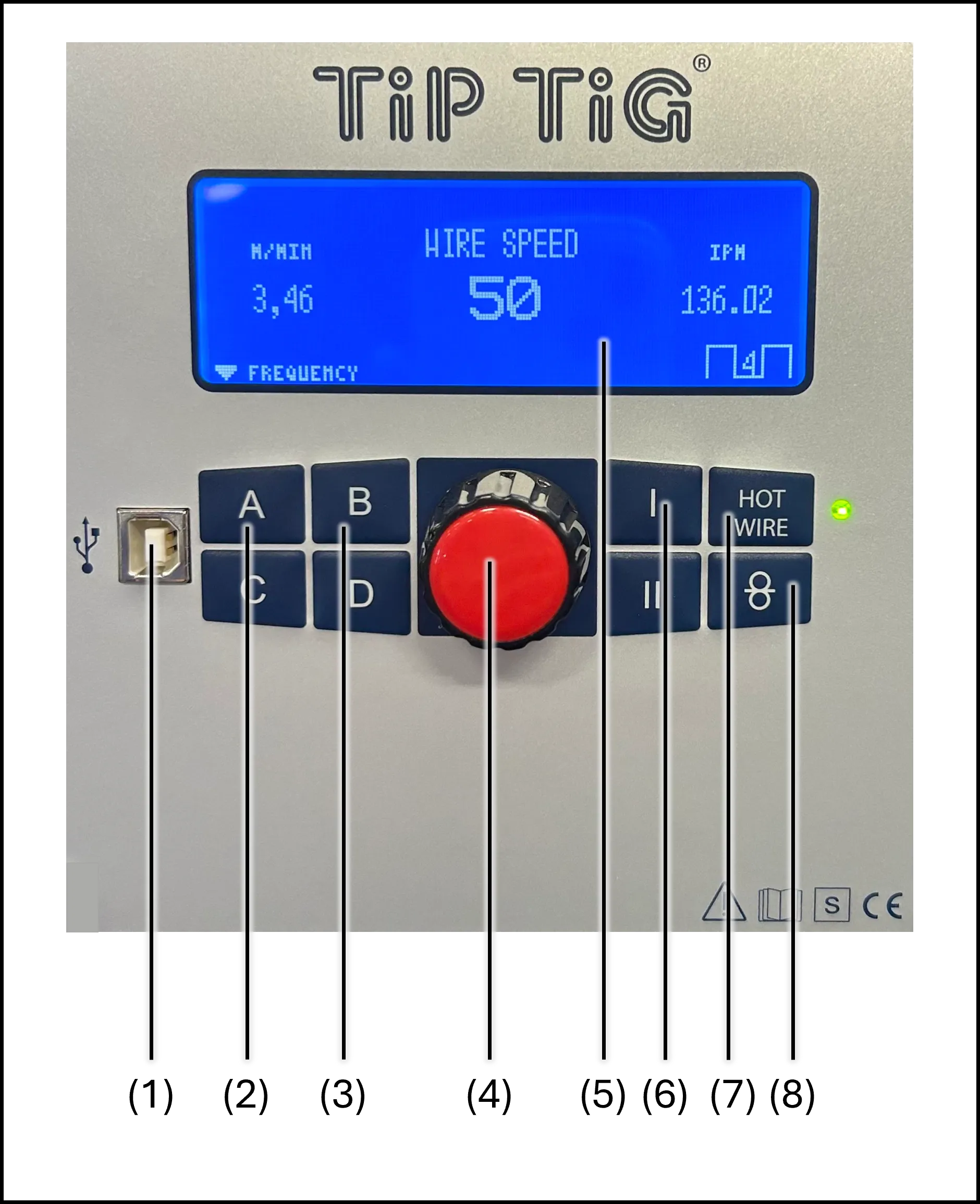
Wire Speed Display
The main screen for setting and monitoring the wire feed speed.
(1)
USB PortFor firmware updates and service diagnostics
(2)
Previous PageNavigate to the previous display screen
(3)
Next PageNavigate to the next display screen
(4)
Adjusting DialTurn to set the desired value on the display
(5)
Wire Speed DisplayShows the current wire feed speed and allows adjustment
(6)
Mode ButtonSwitch between 2T and 4T trigger modes
(7)
Hot Wire ButtonToggle hot wire current on or off
(8)
Wire Inching ButtonAdvances the wire to the torch without hot wire voltage or oscillation
2 / 3
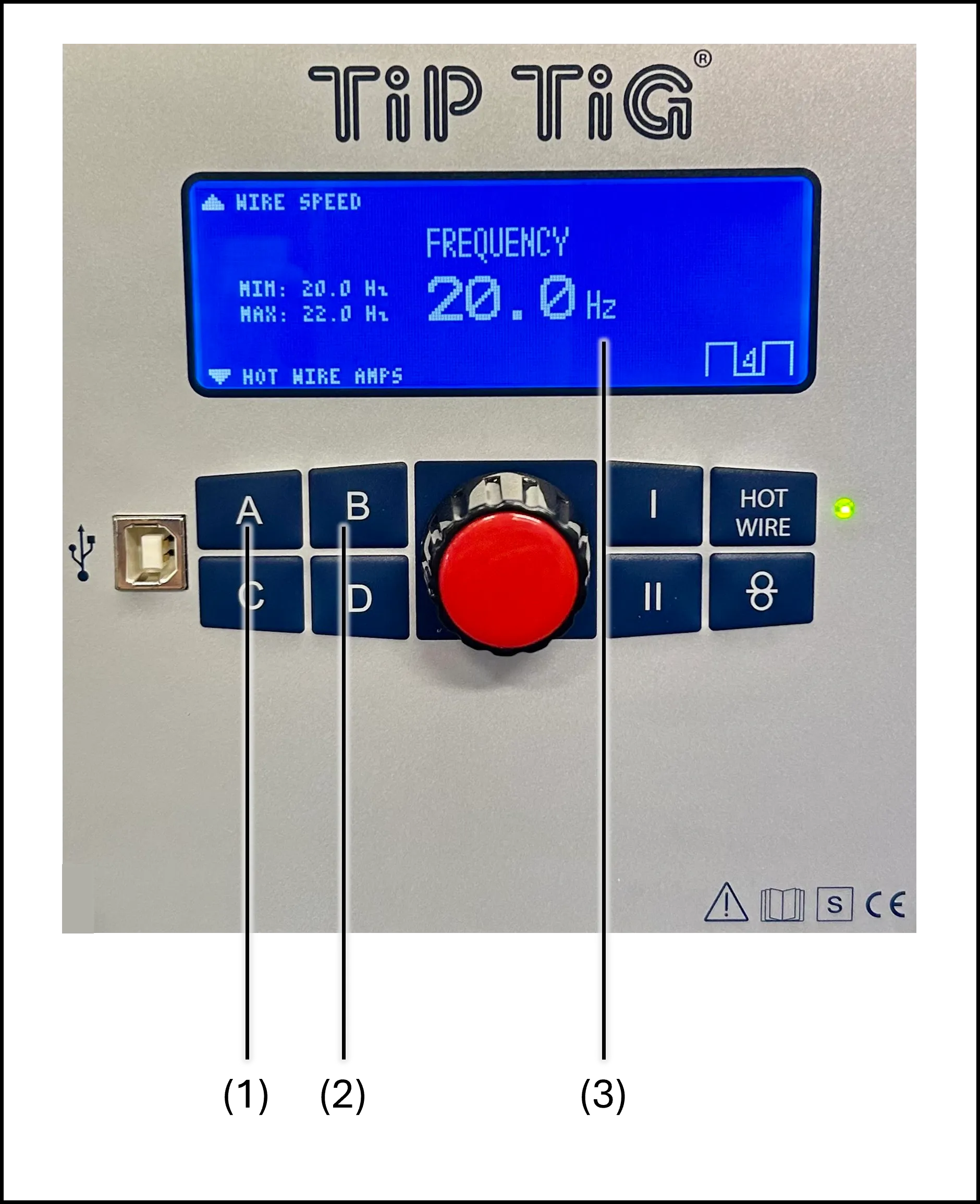
Frequency Control
The frequency screen controls the wire oscillation rate. Higher frequency produces finer ripples in the weld bead; lower frequency increases penetration.
(1)
Previous PageReturn to the Wire Speed screen
(2)
Next PageContinue to the Hot Wire Amps screen
(3)
Frequency DisplayShows and adjusts the wire oscillation frequency
3 / 3
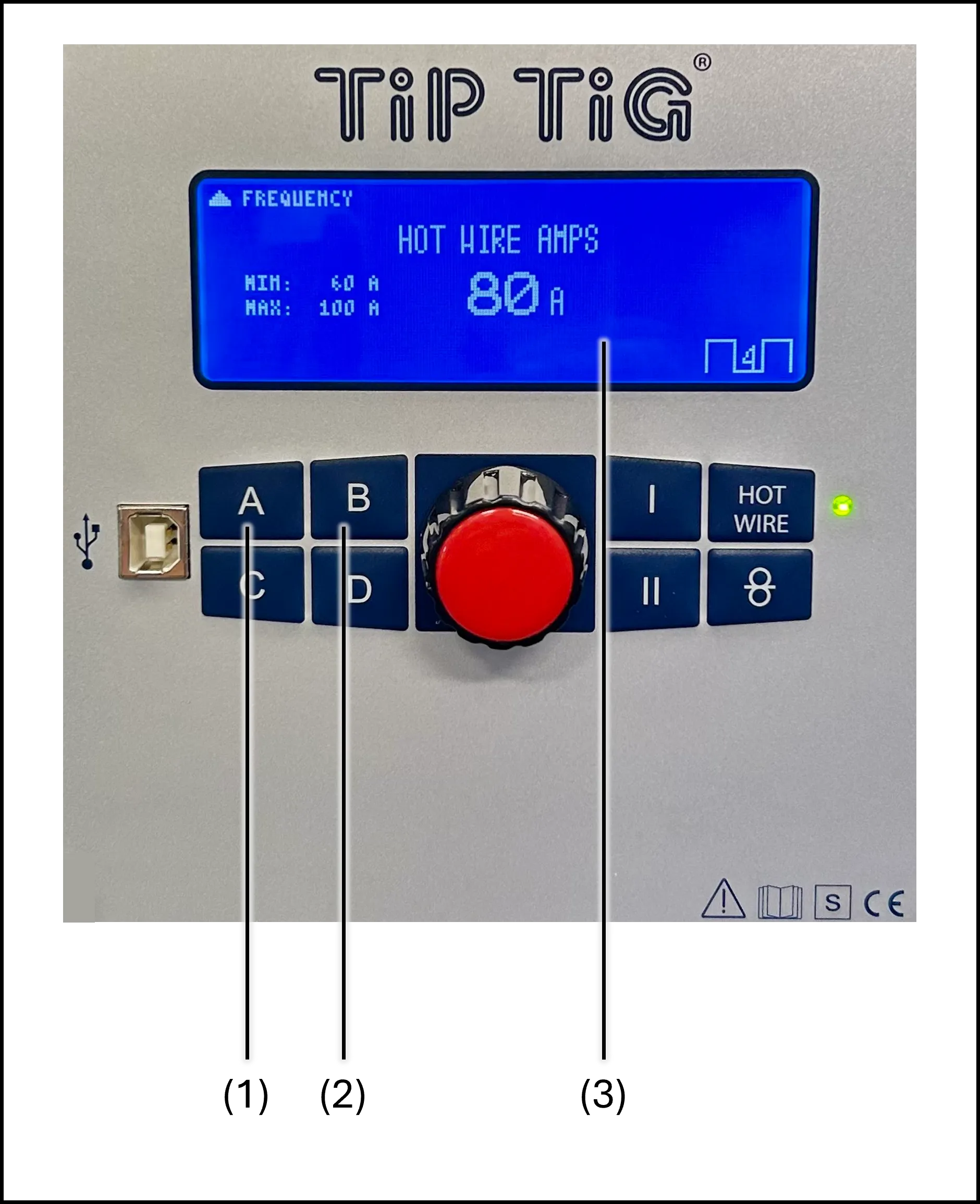
Hot Wire Amps
The hot wire screen controls the preheating current applied to the filler wire. Proper hot wire settings improve wetting and reduce the heat input into the base material.
(1)
Previous PageReturn to the Frequency screen
(2)
Next PageReturn to the Wire Speed screen
(3)
Hot Wire DisplayShows and adjusts the hot wire current in amps
Firmware updates may change device functions. Actual panel appearance and operation may differ slightly from the illustrations shown here. Always refer to your owner's manual for the most current information.